
How to Count Words in Google Docs: Complete Guide
If you are writing an essay, assignment, article, report, or any other document in Google Docs, you may need to check the word count before you finish. Fortunately, Google Docs has a built-in word counter that lets you see the number of words in your document within seconds. In this guide, you’ll learn how to count words in Google Docs, how to keep the word count visible while writing, how to count only selected text, and what to do if you need more detailed information such as characters, paragraphs, or reading time.
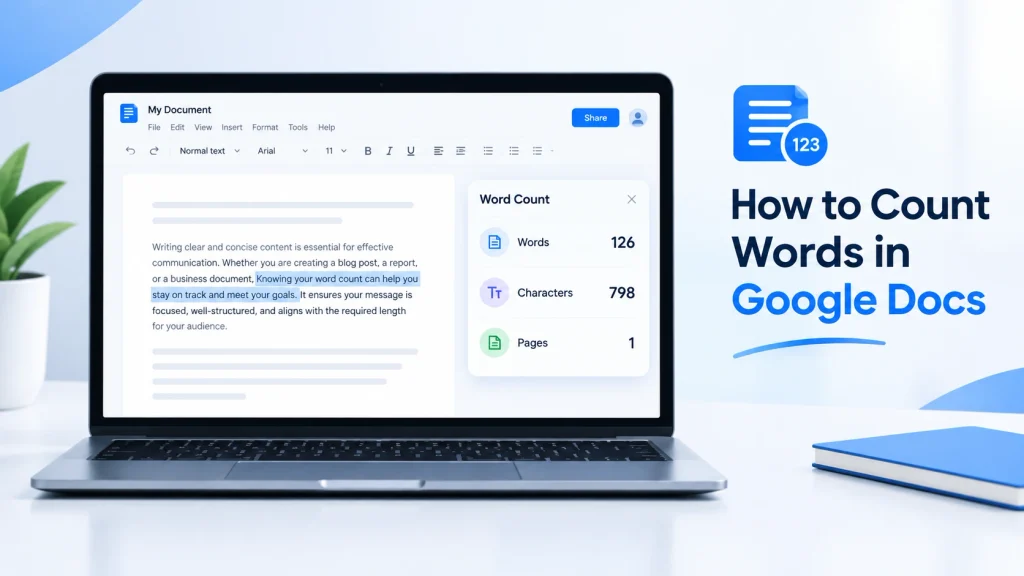
How to Count Words in Google Docs
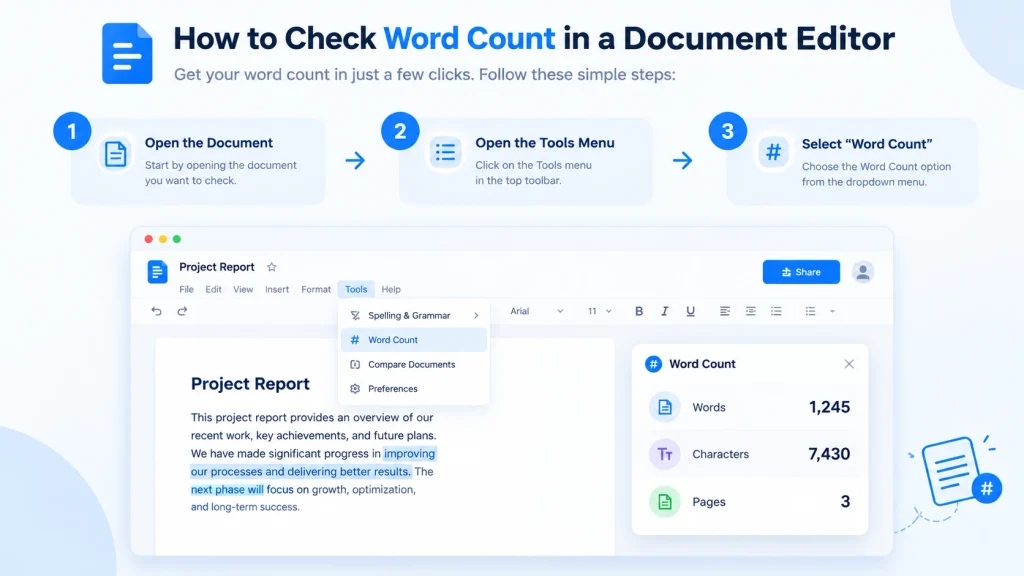
The easiest way to check the word count in Google Docs is through the Tools menu.
Step 1: Open your Google Docs document
Open the document you want to check in Google Docs.
Step 2: Open the Tools menu
At the top of the document, click Tools.
Step 3: Select Word Count
From the menu, choose Word count.
Google Docs will display information about your document, including the number of words.
Google Docs official help: Count the words in a document
Step 4: Check your word count
The word count window can show details such as:
- Pages
- Words
- Characters
- Characters excluding spaces
This makes it useful when you’re working with a specific writing limit.
How to Keep Word Count Visible While Writing
If you are working on a long document, opening the Word Count window repeatedly can become inconvenient. Google Docs provides an option to display the word count while you type. Open Tools → Word count, then select the option to display word count while typing. The word count will appear on the screen as you continue writing. This is particularly useful when you have a maximum or minimum word requirement. For example, if your assignment requires 1,500 words, you can keep an eye on the counter instead of stopping every few minutes to check your progress.
How to Count Words in Part of a Google Docs Document
You don’t always need the word count for the entire document.
If you want to count only a specific section:
- Highlight the text you want to check.
- Open Tools.
- Select Word count.
- Google Docs will show the count for the selected text.
This can be helpful when checking individual sections of an essay, article, report, or chapter. For example, suppose your document contains 3,000 words but your introduction should be around 300 words. You can select the introduction and check its word count separately.
Google Docs Word Count Keyboard Shortcut
Using the keyboard shortcut can be faster than opening the Tools menu.
On Windows or Chrome OS, press: Ctrl + Shift + C
On Mac, press: Command + Shift + C
This opens the Word Count feature without requiring you to navigate through the menu. If you frequently check word counts, learning the shortcut can save a little time.
What Does Google Docs Word Count Include?
The word count tells you how many words Google Docs recognizes in your document. The Word Count feature can also provide additional information, including:
| Measurement | What it tells you |
|---|---|
| Pages | Approximate number of pages |
| Words | Total word count |
| Characters | Characters including spaces |
| Characters excluding spaces | Characters without spaces |
These measurements are useful for different types of writing. For example, an essay may have a 1,000 word limit, while a social media post or meta description may have a character limit instead.
Word Count vs. Character Count
Word count and character count are not the same thing. Word count measures the number of words in your text. Character count measures individual characters, including letters, numbers, punctuation, and usually spaces depending on the measurement being used. For example: Writing online is easy. This sentence contains several words, but the character count is considerably higher because every letter, space, and punctuation mark contributes to the total. If you need to check both measurements quickly, you can use our Word Counter and Character Counter tools.
Why Word Count Matters
Word count isn’t just a number. It can help you control the length and structure of your writing.
Students and teachers
Assignments often have minimum or maximum word requirements. Checking your word count before submitting can help you avoid being significantly under or over the requested length.
Bloggers
Bloggers can use word count to keep articles organized and make sure important topics are covered without adding unnecessary sections. There isn’t one ideal word count for every blog post. The appropriate length depends on the topic, search intent, audience, and amount of information needed to answer the question properly.
Writers
Authors, freelance writers, and editors may work with specific word count requirements for articles, manuscripts, newsletters, and other projects.
Job applications
Some applications specify a maximum number of words for personal statements, cover letters, or application questions. Word counting helps you stay within those limits.
How to Check Word Count Without Google Docs
Google Docs is convenient when you’re already working inside a document. But sometimes your text is somewhere else, such as:
- A website
- Microsoft Word
- An email
- A text editor
- A social media draft
- A copied piece of content
In those situations, an online word counter can be quicker. You can paste your text into our Word Counter to check words, characters, sentences, paragraphs, and other useful writing statistics in one place. This can be especially helpful when you want a quick analysis without creating or opening a Google Docs document.
Google Docs vs. Online Word Counter
Both options can be useful, but they serve slightly different purposes.
| Feature | Google Docs | Online Word Counter |
|---|---|---|
| Word count | Yes | Yes |
| Character count | Yes | Yes |
| Count selected text | Yes | Usually |
| Sentences | Limited | Often available |
| Paragraphs | Limited | Often available |
| Reading time | Not a main feature | Often available |
| Keyword analysis | No | Some tools provide it |
| Works with pasted text | Yes | Yes |
If you’re already writing in Google Docs, its built-in counter is usually enough. If you want additional writing statistics, an online word counter may be more convenient.
How to Stay Within a Word Limit
If you’re trying to meet a specific word count, don’t simply add unnecessary sentences to reach the target. Instead, focus on making the content useful. For example, if an assignment requires 1,000 words:
- Start by outlining the main points.
- Write your first draft naturally.
- Check the word count.
- Remove unnecessary repetition.
- Add important information that is missing.
- Review the final version.
If you’re below the required length, look for areas that genuinely need more explanation rather than repeating the same idea.
How to Calculate Reading Time From Word Count
Word count can also give you an approximate idea of how long an article takes to read. For example, an article containing 1,500 words will generally take longer to read than a 500 word article. However, reading speed varies from person to person. Someone reading quickly may finish the same article considerably faster than someone reading carefully. For a quick estimate, you can use our Reading Time Calculator. It can be useful when preparing blog posts, articles, scripts, presentations, and other longer pieces of content.
How to Count Words in Google Docs on Mobile
Google Docs is also available on mobile devices, but the interface and available options can vary depending on the device and app version. If you’re using Google Docs on Android or iPhone, open your document and look for the document options or menu where the Word count feature is available. If you don’t immediately see it, make sure you’re using the latest version of the Google Docs app. For the most predictable word count workflow, the desktop version of Google Docs provides a straightforward Word Count option.
What If Google Docs Shows the Wrong Word Count?
If the number seems different from what you expected, check the text you’re actually counting. A few things can cause different results between tools:
- Formatting or unusual text
- Numbers and symbols
- Punctuation
- Text copied from another source
- Selected text versus the complete document
- Different counting rules used by different applications
If you’re comparing Google Docs with another word counter, small differences can sometimes occur because the two systems process text differently. For an important submission, use the counting method specified by your school, employer, publisher, or client when one is provided.
Frequently Asked Questions
Open your Google Docs document, click Tools, and then select Word count. Google Docs will show the number of words along with other document statistics.
On Windows and ChromeOS, press Ctrl + Shift + C. On Mac, press Command + Shift + C to open the Word Count feature.
Yes. Highlight the text you want to check and open the Word Count feature. Google Docs will show the word count and other statistics for the selected text.
Yes. Open the Word Count feature and enable the option to display the word count while typing. The counter will remain visible as you write.
Yes. Google Docs can show the total number of characters as well as the number of characters excluding spaces.
Yes. You can paste your text into an online word counter to check words, characters, sentences, paragraphs, and other useful writing statistics.
Google Docs provides a useful built-in word count. However, different applications can sometimes use different rules for processing text, so small differences may occur when comparing results.
Final Thoughts
Knowing how to count words in Google Docs is useful whether you’re writing a college assignment, blog post, report, application, or long-form document. For a quick check, the built-in Tools → Word count option is usually all you need. If you’re working with a specific word limit, you can also keep the count visible while writing or select a particular section to check its length. When you need more detailed writing statistics, an online word counter can provide additional information such as character count, sentences, paragraphs, and estimated reading time.